In-depth guideMicrosoft 365 & cloud
Microsoft 365 for Small Businesses: Getting More From What You Pay For
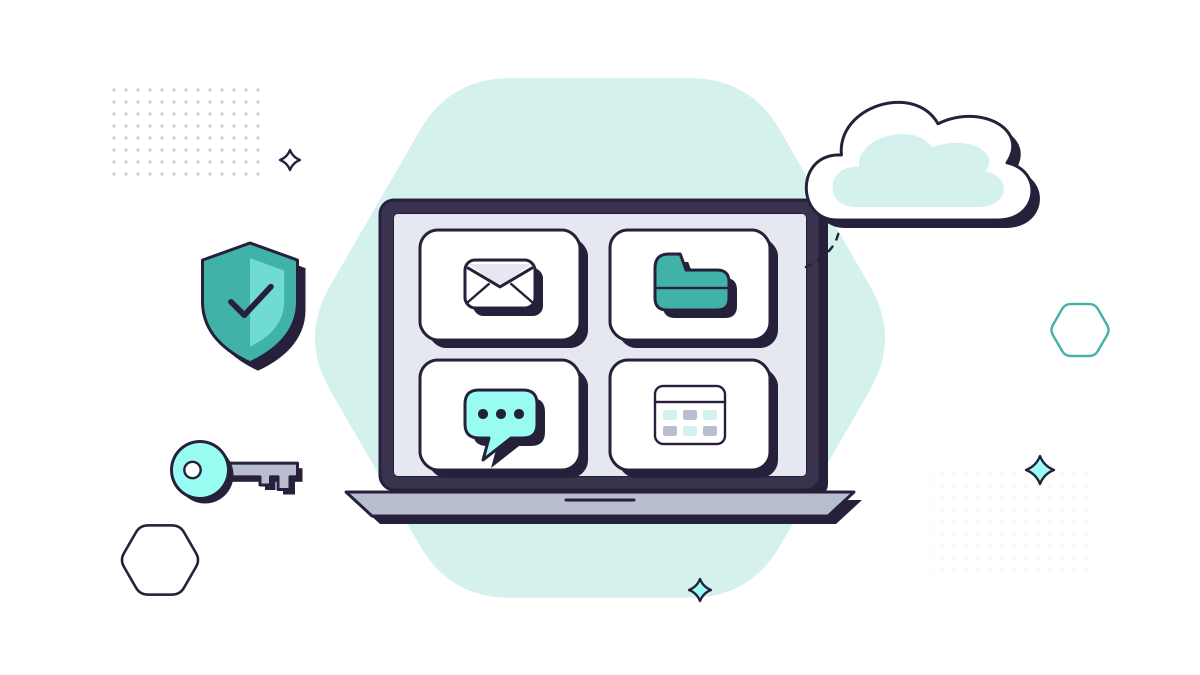
Microsoft 365 gives a small office email, calendars, Teams, file storage and the Office apps in one subscription. Many companies we meet use a fraction of it. They pay for tools nobody has been shown, keep files on one person’s PC, and leave security settings at whatever they were on the day the account was opened.
This guide is about getting more from what you already pay for: which plan you need, how to set it up securely, and the features worth switching on. It describes Microsoft 365 as it stands in October 2026. We don’t list Microsoft’s prices because they change often; check its UK comparison page before you buy.
Business Basic vs Standard vs Premium: which do you need?
Microsoft sells three business plans, for up to 300 users in total. They build on each other.
Business Basic gives each person a 100 GB mailbox, Teams, 1 TB of OneDrive storage and SharePoint, with the web and mobile versions of Word, Excel and PowerPoint. It suits people who mostly email and work in a browser.
Business Standard adds the desktop Office apps, such as Word, Excel and PowerPoint, on up to five PCs or Macs, five tablets and five phones per person, along with Loop workspaces and Clipchamp for video.
Business Premium adds the security and management a company holding client data needs:
- Intune, to manage and secure laptops and phones, including personal phones used for work
- Microsoft Entra ID P1, for Conditional Access: rules such as “only allow sign-ins from company devices”
- Defender for Business, endpoint protection for your computers
- Defender for Office 365 Plan 1, extra protection against phishing links and malicious attachments
- Purview information protection and data loss prevention for email and files
- an email archive that grows to 1.5 TB
Since 1 July 2026, Microsoft has also sold Business Standard and Business Premium “with Copilot”, which include Microsoft’s paid AI assistant, and every plan comes with or without Teams. The UK comparison page has the current line-up.
Our view: if your company holds client data, Business Premium is the plan to have, because without it you can’t manage devices or control where people sign in from. It’s also the plan our managed IT is built on: every MYLE plan requires Microsoft 365 Business Premium for each user, and the licences aren’t included in our prices; they’re billed on top at Microsoft’s current price. Our pricing page shows exactly what our plans cost and include.
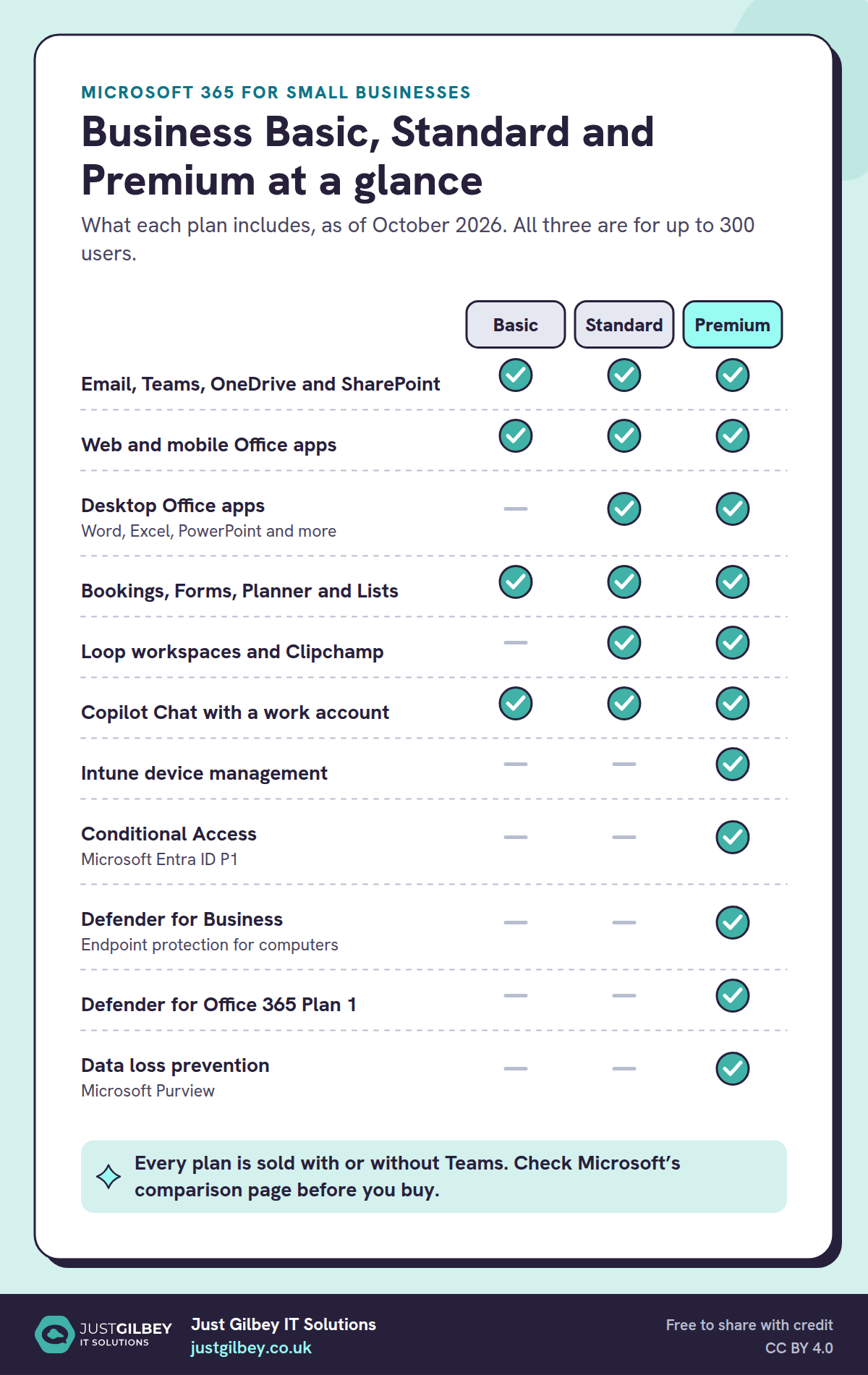
Business Basic, Standard and Premium at a glance
What each plan includes, as of October 2026. All three are for up to 300 users.
| Included | Basic | Standard | Premium |
|---|---|---|---|
| Email, Teams, OneDrive and SharePoint | Yes | Yes | Yes |
| Web and mobile Office apps | Yes | Yes | Yes |
| Desktop Office appsWord, Excel, PowerPoint and more | No | Yes | Yes |
| Bookings, Forms, Planner and Lists | Yes | Yes | Yes |
| Loop workspaces and Clipchamp | No | Yes | Yes |
| Copilot Chat with a work account | Yes | Yes | Yes |
| Intune device management | No | No | Yes |
| Conditional AccessMicrosoft Entra ID P1 | No | No | Yes |
| Defender for BusinessEndpoint protection for computers | No | No | Yes |
| Defender for Office 365 Plan 1 | No | No | Yes |
| Data loss preventionMicrosoft Purview | No | No | Yes |
Every plan is sold with or without Teams. Check Microsoft’s comparison page before you buy.
Set it up securely from day one
Whichever plan you have, check these three things first:
Multi-factor authentication for everyone. Microsoft now makes multi-factor authentication mandatory for anyone signing in to its admin portals, but that doesn’t cover your staff’s own sign-ins. New accounts have security defaults switched on, which require everyone to register for multi-factor authentication and block older sign-in methods that attackers abuse. If you have Business Premium, Microsoft recommends using Conditional Access instead, which lets you set your own rules.
Admin accounts kept separate. The people who run your Microsoft 365 should use a separate administrator account for admin work, not their everyday mailbox.
Email protection switched on. SPF, DKIM and DMARC stop criminals sending email that looks like it comes from your domain, and with Business Premium, Defender for Office 365 checks links and attachments. Our free email security check shows how your domain is set up now.
Our guide to phishing and email scams explains why these matter: a fake Microsoft 365 sign-in page is one of the most common ways into a small business’s mailbox.
Files: OneDrive, SharePoint and Teams
Files saved on one person’s PC are one lost laptop away from being gone. Microsoft 365 gives you three places to put them, and each has a job:
- OneDrive for each person’s own working files. Known Folder Move moves their Desktop, Documents and Pictures into OneDrive automatically, so those folders aren’t stored only on the PC. Our post on OneDrive Known Folder Move explains how it works.
- SharePoint for shared company files: client folders, templates, policies. Your organisation gets 1 TB plus 10 GB per licence.
- Teams for files that belong to a team or a project. Behind the scenes, they’re stored in SharePoint.
Plan the structure before you move anything, and decide who can open what. The most common mess we see is permissions: folders shared with “everyone” years ago and links that anyone can open. Our posts on choosing cloud storage and where deleted files go cover the rest.
Email, calendars and shared mailboxes
A few things most small businesses don’t know they have:
- Shared mailboxes for addresses like info@ or accounts@ need no licence up to 50 GB. Several people can work from one inbox without sharing a password.
- Microsoft Bookings, included in all three plans, gives clients a page to book appointments that fits around your calendars.
- Delegation, so a colleague can manage someone’s calendar without logging in as them.
Teams
Teams brings chat, meetings and files together, but only if you set it up with some thought: which teams and channels you need, who owns them, and whether guests from outside the company can join. Our Teams setup checklist walks through it, and our comparison of Teams plans explains the free and paid versions.
Two things to know when buying. Business plans are sold with or without Teams, so check which you’re getting. And making and receiving calls to ordinary phone numbers in Teams needs a separate Teams Phone licence and a calling plan. The alternative is a separate cloud phone system, which is what our business phones service provides.
The features you’re probably already paying for
Showing your team a handful of these costs nothing extra:
- Microsoft Forms, for client feedback, event sign-ups, staff surveys and quizzes. Our post on Microsoft Forms shows what it can do, and our UK GDPR checklist for Forms covers using it for personal data.
- Planner, for shared task lists and simple projects. The new Planner brings To Do, Planner and Project together; the premium features need an extra licence.
- Lists, for trackers that would otherwise be a spreadsheet emailed around.
- OneNote, for shared notebooks. See using OneNote for team notes.
- Loop workspaces (Standard and Premium) for planning together, and Clipchamp for simple training videos.
- Power Automate, for approvals, reminders and filing attachments automatically. Our AI & Copilot service includes practical automation of this kind.
From our work
One client was using SurveyMonkey for work that Microsoft Forms, already in their Microsoft 365 plan, could do. We suggested Forms instead, to collect information from their own clients, gather feedback and run staff surveys.
David Gilbey, Just Gilbey IT Solutions
Our posts on Microsoft 365 tips that save time every day and the most useful keyboard shortcuts have more.
Copilot and AI
Microsoft is moving to the name Microsoft Copilot, and Copilot Chat to Microsoft Copilot Chat, while licences and some screens still say Microsoft 365 Copilot.
Copilot Chat is included for people signed in with a work account, with enterprise data protection: what they type isn’t used to train Microsoft’s models. It works from the web rather than your company’s files, which makes it a safer default to point staff towards instead of free consumer tools.
Microsoft Copilot (the paid version) works with your email, files, chats and meetings. For small businesses it’s sold as an add-on called Copilot Business, for up to 300 seats, or as part of the “with Copilot” plans. Because it can find anything a person can already open, tidy your SharePoint and OneDrive permissions before you switch it on.
Our guide to using AI safely at work covers the rules for staff, and our post on what Copilot does in 2026 explains the features.
Laptops and phones: Intune
With Business Premium, Intune lets you set up new laptops without touching them, keep them encrypted and updated, and wipe a lost one. On personal phones it can protect just the work apps, such as Outlook and Teams, and remove only company data when someone leaves. Our post on Microsoft Intune for small businesses explains what it does and how to start, and 9 ways to keep business phones and tablets secure covers phones in more detail.
Stop paying for what you don’t use
Licences drift. People leave and keep a licence, someone buys an add-on for a trial and forgets it, and a plan bought five years ago may no longer fit. Microsoft also changed its prices for several business plans from 1 July 2026, so it’s worth a look now. A licence review once or twice a year is worth doing. Our post on stopping waste on Microsoft 365 security and Copilot add-ons shows what to look for.
Microsoft 365 isn’t a backup
Microsoft keeps the service running, but its recycle bins and version history are time-limited, and they may not be enough if an account is taken over or ransomware encrypts files that then sync. A separate backup of email, Teams and SharePoint is part of every MYLE plan. Our guide to business continuity and disaster recovery covers getting back to work when something goes wrong.
Where to start
- Check which plan each person is on, and whether anyone has a licence they don’t need.
- Make sure multi-factor authentication is on for everyone, not just administrators.
- Turn on Known Folder Move so files live in OneDrive, not on PCs.
- Tidy who can open what in SharePoint and OneDrive.
- Pick two features from the list above and show your team how to use them.
Our post on Microsoft 365 vs Office 365 explains the names, if you’re still not sure what you’ve got.
Questions people ask
What’s the difference between Microsoft 365 Business Basic, Standard and Premium?
Basic gives you email, Teams, OneDrive and SharePoint, with the web and mobile versions of the Office apps. Standard adds the desktop apps on up to five PCs or Macs per user, plus Loop workspaces and Clipchamp. Premium adds security and management: Intune for devices, Microsoft Entra ID P1 for Conditional Access, Defender for Business, Defender for Office 365 Plan 1 and Purview data loss prevention.
Which Microsoft 365 plan does a small business need?
If you hold client data, Business Premium, because it adds device management, Conditional Access and stronger protection against phishing and malware. Every MYLE plan requires it. A company with no sensitive data and people who only need email and web apps might manage with Basic.
How many users can a Microsoft 365 business plan have?
The business plans allow up to 300 seats in total across Basic, Standard and Premium combined. Above that, you move to the enterprise plans.
Is Teams included in Microsoft 365 business plans?
Each business plan is sold with Teams or without it. Microsoft started selling the two versions in April 2024 and still does. Making calls to ordinary phone numbers from Teams needs a separate Teams Phone licence and a calling plan.
Is Copilot included in Microsoft 365?
Microsoft Copilot Chat is included for people signed in with a work account, with enterprise data protection, but it works from the web rather than your files. The full Microsoft Copilot, which works with your email, files and meetings, is a paid add-on, or part of the newer Business Standard and Business Premium “with Copilot” plans.
Do we need to back up Microsoft 365?
Yes. Microsoft keeps the service running, but its recycle bins and version history are time-limited, and may not be enough if an account is compromised or ransomware encrypts synced files. A separate backup of email, OneDrive, SharePoint and Teams is the safe choice.
Sources
- Microsoft UK: Compare all Microsoft 365 business plans
- Microsoft UK: Microsoft 365 Business Premium
- Microsoft Learn: Microsoft 365 for business FAQ (updated 15 May 2026)
- Microsoft Learn: Exchange Online limits (updated 9 September 2026)
- Microsoft Learn: SharePoint limits (6 October 2026)
- Microsoft: Microsoft 365 suites with and without Teams (1 April 2024)
- Microsoft Learn: Teams add-on licensing (26 March 2026)
- Microsoft Learn: Microsoft Copilot overview (9 September 2026)
- Microsoft Learn: Copilot Business FAQ (updated 25 August 2026)
- Microsoft: Introducing Microsoft 365 Business with Copilot (28 May 2026)
- Microsoft Learn: Mandatory multifactor authentication for Azure and admin portals
- Microsoft Learn: Security defaults in Microsoft Entra ID (updated 1 July 2026)
- Microsoft Learn: Redirect and move Windows known folders to OneDrive
- Microsoft Learn: Microsoft Bookings overview (17 August 2026)
- Microsoft Learn: Planner licensing (27 May 2026)
- Microsoft Learn: Loop requirements (18 August 2026)
- Microsoft: Microsoft 365 packaging and pricing updates FAQ (24 March 2026)