The Most Useful Windows 11 and Microsoft 365 Keyboard Shortcuts

Keyboard shortcuts are the cheapest productivity upgrade there is. Each one saves a second or two, but the ones you use dozens of times a day add up quickly. You don’t need to learn hundreds: a dozen or so cover most of an office day.
All the shortcuts below were checked against Microsoft’s own lists for Windows 11 and Microsoft 365 in October 2026. Where you see “+”, hold down the first key (or keys) and tap the last one.
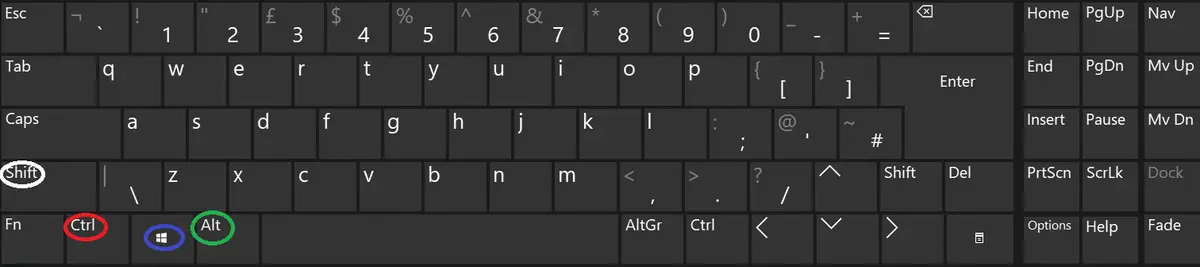
The everyday basics
These work in almost every Windows app, including Word, Excel, Outlook and your browser.
| Shortcut | What it does |
|---|---|
| Ctrl + A | Select everything (all the text, or all the files in a folder) |
| Ctrl + C | Copy |
| Ctrl + X | Cut |
| Ctrl + V | Paste |
| Ctrl + Z | Undo the last thing you did |
| Ctrl + Y | Redo |
| Ctrl + F | Find on the page or in the document |
| Ctrl + Backspace | Delete the whole word to the left (in Word and most editors) |
Copy, cut and paste also work on files and folders in File Explorer, not just text.
Windows 11 shortcuts worth learning
| Shortcut | What it does |
|---|---|
| Windows key + L | Lock your computer |
| Windows key + V | Open clipboard history |
| Windows key + Shift + S | Take a screenshot of part of the screen |
| Alt + Tab | Switch between open windows |
| Windows key + D | Show or hide the desktop |
| Windows key + E | Open File Explorer |
| Windows key + Z | Open Snap layouts, to arrange windows side by side |
| Windows key + left or right arrow | Snap the current window to one half of the screen |
| Windows key + H | Start voice typing (dictation) |
| Ctrl + Shift + Esc | Open Task Manager |
A few of these deserve a word of explanation.
Windows key + L: lock your screen
If you learn only one shortcut, make it this one. Walking away from an unlocked computer leaves your email, client files and systems open to anyone passing. In an office with visitors, or for anyone handling client data, locking your screen every time you stand up is a basic data protection habit. It takes less than a second.
Windows key + V: clipboard history
Normally Windows only remembers the last thing you copied. Clipboard history keeps a list, so you can copy several things (an address, a reference number, a paragraph) and then paste each one where it’s needed. The first time you press it, Windows asks you to turn it on.
Be careful what you copy: passwords and client details will sit in the history too. A password manager that fills passwords in for you is a better habit than copying and pasting them.
Windows key + Shift + S: screenshots
Draw a box around any part of the screen and the picture is copied, ready to paste into an email or a Teams chat. It’s the quickest way to show your IT support exactly what an error message says, and much clearer than a photo of the screen taken on a phone.
Windows key + Z: Snap layouts
Puts two, three or four windows neatly side by side. Useful for working on a document while reading the email it relates to, or comparing two spreadsheets.
Outlook
| Shortcut | What it does |
|---|---|
| Ctrl + R | Reply |
| Ctrl + Shift + R | Reply all |
| Ctrl + F | Forward |
| Ctrl + N (new Outlook) or Ctrl + Shift + M (classic Outlook) | New email |
| Ctrl + Enter | Send |
| Ctrl + 1 / Ctrl + 2 | Switch to Mail / Calendar |
| Ctrl + E | Search |
| Insert | Flag a message |
| Ctrl + Q | Mark as read |
Take care with Ctrl + Shift + R: “reply all” to a large internal list, or to the other side in a transaction, is one of the most common ways information ends up with the wrong person.
Teams
| Shortcut | What it does |
|---|---|
| Ctrl + Shift + M | Mute or unmute yourself in a meeting |
| Ctrl + Shift + O | Turn your camera on or off |
| Ctrl + Shift + K | Raise or lower your hand |
| Ctrl + E | Go to search |
| Ctrl + N | Start a new chat |
| Ctrl + . | Show all keyboard shortcuts |
Word
| Shortcut | What it does |
|---|---|
| Ctrl + Shift + V | Paste text only, without the original formatting |
| Shift + F3 | Switch selected text between upper case, lower case and title case |
| Ctrl + H | Find and replace |
| Ctrl + K | Insert a hyperlink |
| Ctrl + Enter | Insert a page break |
| Ctrl + Space | Remove character formatting from selected text |
| F7 | Check spelling and grammar |
Ctrl + Shift + V is the one most people wish they’d known sooner: no more pasted text arriving in someone else’s font and colour.
Excel
| Shortcut | What it does |
|---|---|
| Ctrl + ; | Enter today’s date |
| Ctrl + Shift + ; | Enter the current time |
| Ctrl + T | Turn a range of data into a table |
| Ctrl + Shift + L | Turn filters on or off |
| Ctrl + arrow key | Jump to the edge of the data |
| Ctrl + Shift + arrow key | Select to the edge of the data |
| Alt + = | AutoSum |
| F4 | Switch a cell reference between relative and absolute ($A$1) while editing a formula |
| Ctrl + 1 | Format cells |
| Ctrl + E | Flash Fill, which spots a pattern and fills the rest of the column |
Going further: PowerToys
Microsoft PowerToys is a free set of extra Windows utilities from Microsoft. It includes Always On Top (pin a window above everything else), Awake (stop the computer sleeping), Keyboard Manager (remap keys and create your own shortcuts) and Text Extractor (copy text out of an image or a screenshot).
In a business, check with whoever looks after your IT before installing it. Many companies, rightly, don’t let staff install software themselves, and some PowerToys features change how Windows behaves.
Help that knows your set-up
Shortcuts are a small thing, but small things are often what slow a team down. If your staff would like a hand getting more out of Windows and Microsoft 365, that’s part of the day-to-day help included in our managed IT support. You might also like our eight ways to organise your work devices.
Questions people ask
Why doesn’t Windows key + V show anything?
Clipboard history is off by default. Press Windows key + V once and choose to turn it on, or go to Settings > System > Clipboard. Your organisation’s settings may also turn it off.
How do I see all the shortcuts in Teams?
Press Ctrl + full stop (.) in Teams to show the list of keyboard shortcuts.
Do these shortcuts work on a Mac?
Most have a Mac equivalent using the Command key instead of Ctrl, but some are different. Microsoft’s support pages list both.