Microsoft Teams Setup Checklist for UK Small Businesses
Microsoft Teams does chat, meetings, calls and file sharing in one place, and it comes with most Microsoft 365 business plans. That flexibility is also why it gets messy: if everyone creates teams and channels their own way, within a few months nobody knows where anything lives.
The fix is a little planning before people start. Here is the checklist we’d work through.
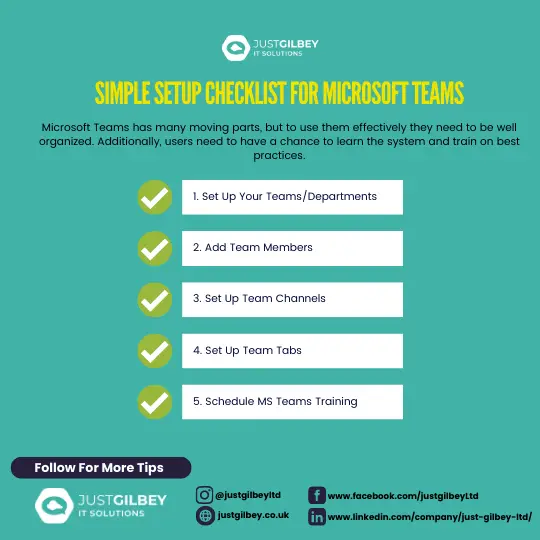
1. Decide who can create teams
By default, anyone in your organisation can create a team. For a small company that often means duplicates (“Accounts”, “Accounts team”, “Finance”) and teams nobody owns.
An administrator can limit team creation to a named group of people. Be aware this setting controls Microsoft 365 groups as a whole, so it also affects Outlook groups, Planner plans and the SharePoint sites that come with them. Decide who those people are, and make it easy for everyone else to ask.
2. Set up teams that mirror how you work
Start with a small number of teams. Good starting points:
- A company-wide team for announcements and general chat
- One team per department, such as accounts, client services or operations
- A team for management or partners, kept private
For solicitors, a team per department usually works better than a team per matter, which multiplies quickly. Your case management system remains the place for matter records.
Every new team gets its own SharePoint site for files, so a sensible team structure also gives you a sensible file structure.
3. Add members and two owners
Add the people who should see each team’s conversations and files. Everyone else can’t see the team’s content unless it is made public.
Give every team two owners. Owners add and remove members and change settings, and if a team’s only owner leaves, nobody can manage it without an administrator stepping in.
4. Plan the channels
Channels are the topics inside a team. A client services team might have channels for new enquiries, complaints and procedures. A few rules keep them tidy:
- Start with three or four channels per team, not twenty.
- Name them clearly so people can guess what goes where.
- Use the right type. Standard channels are open to everyone in the team. Private channels are for a smaller group within it, such as HR matters. Shared channels let you work with people outside the team, or outside your company if your administrator allows it.
By default, any team member can create standard channels. If that’s causing clutter, team owners can turn it off in the team’s settings.
5. Add tabs for the things people look for
Tabs sit along the top of each channel and give quick access to the resources that team uses most: a key spreadsheet, a OneNote notebook, a Planner board or a website such as HMRC’s online services.
To add one, open the channel, select Add a tab (the + at the top), choose the app or website and select Add. A shared team notebook is a good first tab: see our guide to using OneNote for team notes.
6. Agree the rules for people outside your company
Teams has two separate ways to work with clients and suppliers:
- External access lets your staff chat, call and meet with people in other organisations that use Microsoft Teams, without giving them access to your teams.
- Guest access adds an outside person to a specific team, where they can see its conversations and files.
Guest access is useful, but it can expose client documents to the wrong person if it isn’t managed. Decide whether you allow guests, who can invite them, and how often you review who still has access. If your teams hold personal data, that review is part of keeping it secure under UK GDPR.
7. Set up a tidy-up routine
Teams accumulate. Projects end, people leave, and old teams hang around holding files nobody looks after. Two things help:
- An expiry policy. An administrator can set teams to expire after a period. Active teams renew automatically, and owners of inactive ones get reminders 30 days, 15 days and 1 day before they’re removed.
- Leavers’ checklist. When someone leaves, check which teams they owned and hand them over.
8. Train your staff
The most common reason Teams doesn’t stick is that people never learned it properly, so they go back to email. Plan short sessions on:
- Posting in channels instead of emailing colleagues
- Where files live and how to share a link instead of an attachment
- Joining and running meetings, including the lobby and recording settings
- Using @mentions so the right person sees a message
Microsoft’s free Teams video training covers the basics in short videos. After a few weeks, ask staff what’s still confusing and fix that.
Getting Teams right from the start
Teams works best when the structure, permissions and guest settings are agreed before everyone dives in. Our cloud services team can set up Microsoft 365 and Teams for you, or review an existing set-up that has grown out of hand. If you’re still choosing a plan, our Teams plan comparison explains the options.
Questions people ask
Can I stop staff creating their own teams?
Yes. An administrator can limit who can create Microsoft 365 groups, which also controls who can create teams. Bear in mind it affects other apps that use groups, such as Planner and SharePoint.
What is the difference between a team and a channel?
A team is a group of people with shared files and conversations, such as “Accounts” or “Partners”. Channels are the topics inside a team, such as “Payroll” or “Year end”. Each team gets its own SharePoint site for its files.
Can we talk to clients in Teams?
Yes, in two ways. External access lets you chat, call and meet with people in other organisations that use Teams, without adding them to anything. Guest access adds an outside person to a specific team so they can see its chats and files, so use it carefully.
Sources
- Microsoft Learn: Manage who can create Microsoft 365 Groups
- Microsoft Support: Standard, private or shared channels in Microsoft Teams
- Microsoft Support: Use a tab in a channel or chat in Microsoft Teams
- Microsoft Learn: Communicate with users from other organisations in Teams
- Microsoft Learn: Team expiration and renewal in Microsoft Teams
- Microsoft Support: Microsoft Teams video training