9 Ways to Keep Business Phones and Tablets Secure
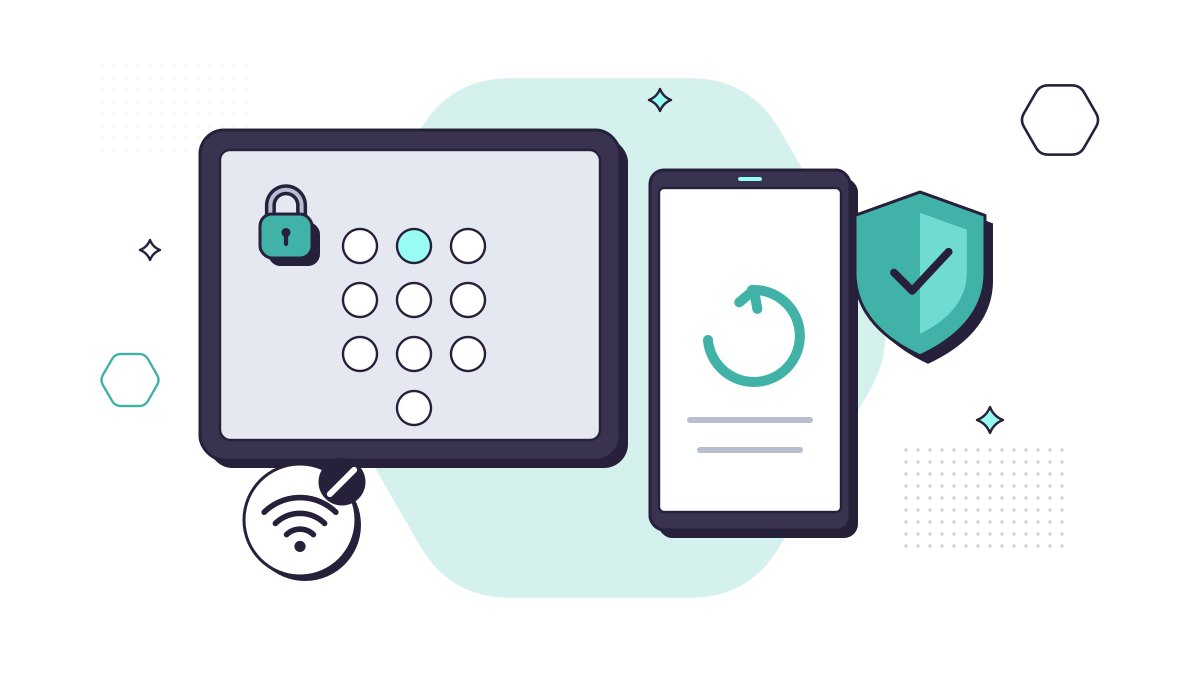
A work phone today holds email, client files, Teams chats and, often, the app that approves sign-ins to everything else. Losing one, or having one compromised, can expose far more than a contact list. The good news is that phones and tablets can be made very secure, mostly with settings that are already built in.
These nine steps apply to company phones and to personal phones that staff use for work.
1. Agree a short policy
Before you hand out devices or let staff use their own, write down the rules. It doesn’t need to be long. Cover:
- which devices can be used for work, and whether personal phones are allowed;
- the minimum security every device must have (the steps below);
- how to report a lost or stolen device, and how quickly;
- what happens to work data when someone leaves.
If you allow personal devices, the NCSC’s bring your own device guidance is a good guide to balancing security with staff privacy. Smaller businesses are tightening this up: in the Cyber Security Breaches Survey 2025/2026, the share of micro businesses that only allow access through company-owned devices rose to 64%, up from 58% the year before.
Remember that if a personal phone accesses work email or files, it’s in scope for Cyber Essentials.
2. Lock every device properly
The NCSC recommends a 6-digit PIN or a strong password, or fingerprint or face recognition, with a different PIN for each device. Cyber Essentials sets the same minimum: at least 6 characters for a PIN or password used only to unlock a device, and protection against guessing, such as locking after no more than 10 failed attempts.
Set the screen to lock automatically after a minute or two of inactivity.
3. Keep the operating system and apps updated
Updates fix security flaws that criminals actively use. Turn on automatic updates for the operating system and apps. Under Cyber Essentials, critical and high-risk updates must be installed within 14 days of release.
When a phone stops getting updates from its manufacturer, replace it. The NCSC’s advice is simple: if a device is no longer supported, replace it with a more up-to-date model.
4. Install apps only from the official store, and check what they ask for
Apps in the Apple App Store and Google Play are vetted before release, as the NCSC points out. Never install apps from links in messages or websites. On company phones, limit installs to the apps people need for their work.
Vetting isn’t a guarantee, so look at what an app asks to do. A torch or a PDF scanner has no reason to read your contacts, messages or location, or to draw over other apps. Say no to permissions an app doesn’t need, and delete apps nobody uses. Both iPhone and Android settings show which apps have which permissions.
Malware on phones usually arrives through an app installed from outside the store or a link in a text. Signs that something is wrong include a battery that suddenly drains faster, a jump in data use, pop-ups, and apps nobody remembers installing. If a phone used for work shows these signs, tell whoever looks after your IT before doing anything else, change the passwords for work accounts from a different device, and expect the phone to be wiped and set up again.
5. Manage work data centrally
Mobile device management (MDM) lets your IT support apply settings, push updates and wipe a lost device from one place. Microsoft Intune, included in some Microsoft 365 business plans, is a common choice. It works in two ways:
- Full device management for company-owned phones, so the whole device can be configured and wiped if needed.
- App protection for personal phones, which manages only work apps such as Outlook and Teams. When someone leaves, you remove work data without touching their personal content.
Either way, you know which devices can reach your data and that they meet your minimum security.
6. Be ready for loss or theft
Phones leave the office, so they’re more likely to be lost or stolen. Make sure Find My (iPhone) or Find My Device (Android) is turned on, and that staff know to report a missing device straight away, including out of hours. Then you can locate it, lock it and, if necessary, erase it.
7. Protect work sign-ins on the phone
If someone’s phone receives their MFA codes by text, a criminal who takes over their number can receive them too. Cifas recorded a 402% rise in unauthorised SIM swap cases in the first half of 2026 compared with the same period in 2025. Use an authenticator app or a passkey for work accounts instead. Our article on unexpected ways hackers get into accounts explains SIM swaps in more detail.
8. Be careful with public Wi-Fi
Unknown Wi-Fi in cafés, hotels and stations can be set up or watched by criminals. For anything to do with work, it’s usually simpler and safer to use mobile data or the phone’s own hotspot. If staff need public Wi-Fi regularly, ask your IT support about a VPN.
9. Treat unexpected texts and messages with suspicion
Scam texts are written to be tapped on a phone, often in a hurry. Teach staff not to tap links in unexpected messages and to forward scam texts to 7726. Filtering web traffic on work phones adds a safety net by blocking known scam sites. We cover this in our guide to scam texts.
Don’t forget the laptops
Phones are one kind of endpoint. Laptops and desktops need the same care, plus things like disk encryption and endpoint protection. Our simple guide to endpoint protection covers the rest.
If you’d rather not manage all of this yourself, our managed IT support keeps systems updated and watched, so issues are caught early.
Questions people ask
Are staff’s personal phones in scope for Cyber Essentials?
Yes, if they access your organisation’s data or services, such as work email. The April 2026 requirements make an exception for phones used only for calls, texts and MFA apps.
Can we wipe a member of staff’s personal phone if they leave?
You shouldn’t need to. With app-based management, such as Microsoft Intune app protection, you can remove just the work apps and data and leave their photos and personal apps alone.
Do phones need anti-virus?
For iPhones and Android phones, keeping the operating system updated, installing apps only from the official store and using device management matter more. Under Cyber Essentials, phones can meet the malware protection control by only allowing approved apps.