Endpoint Protection for Small Businesses: A Simple 6-Step Guide
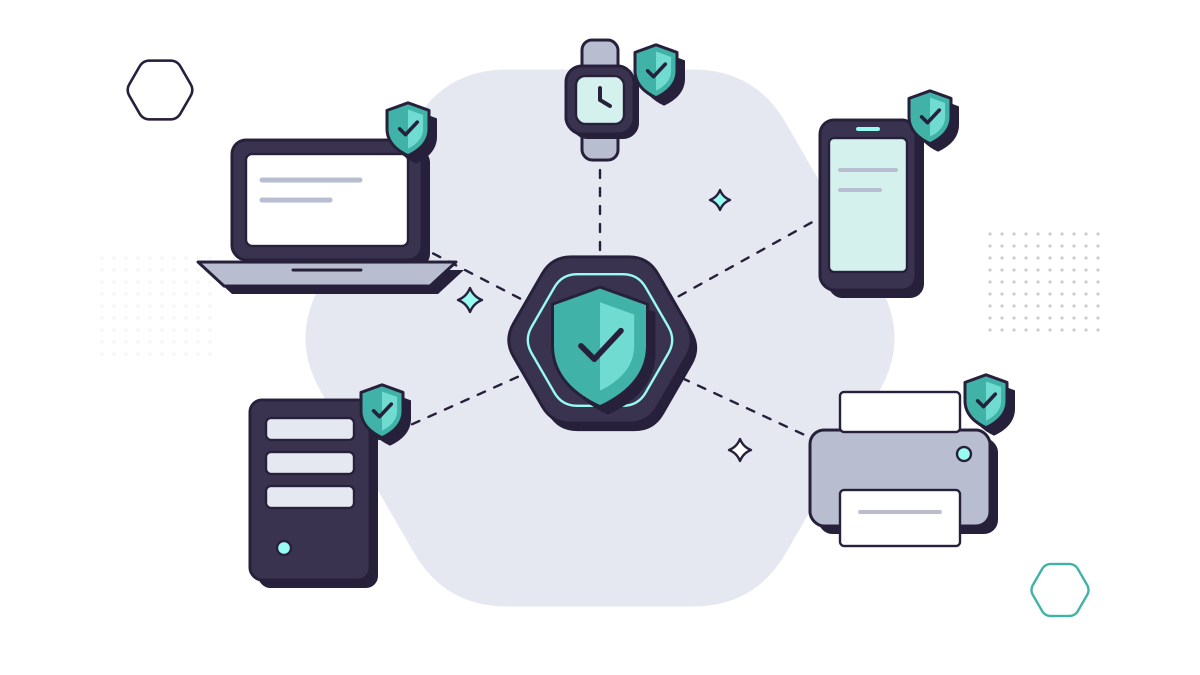
An endpoint is any device that connects to your business’s systems: laptops, desktops, phones, tablets and servers. Each one holds data and a signed-in route to your email and files, so each one is a way in for a criminal. Endpoint protection is the set of habits and tools that keep those devices safe.
Most small businesses have the basics in place. In the Cyber Security Breaches Survey 2025/2026, 81% of businesses had up-to-date malware protection. But only 34% had a policy to apply security updates within 14 days, which is now an automatic-fail question for Cyber Essentials. The gaps are usually in the less obvious steps below.
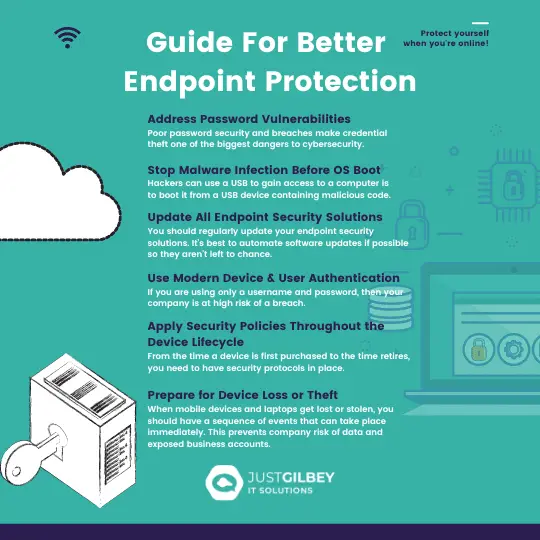
1. Fix password weaknesses
Stolen and reused passwords remain one of the easiest ways into a device or account. The fixes:
- Multi-factor authentication (MFA) on every account. The April 2026 Cyber Essentials requirements make it mandatory for cloud services that offer it.
- Passwordless sign-in where you can. Windows Hello for Business and passkeys use a fingerprint, face or PIN tied to the device. The NCSC now recommends passkeys wherever a service supports them.
- Separate admin accounts. Nobody should browse the web or read email while signed in with administrator rights. Cyber Essentials requires this.
Our guide to creating strong passwords covers the rest.
2. Protect the device before Windows starts
Some attacks start before the operating system loads, for example by booting a laptop from a USB stick or tampering with its start-up files. Modern hardware has defences built in:
- Secure Boot checks that only trusted software runs while the device starts up.
- A Trusted Platform Module (TPM) is a security chip that protects encryption keys. Windows 11 requires TPM 2.0 and a Secure Boot capable system.
- Disk encryption, such as BitLocker on Windows, means a stolen laptop’s data can’t be read without signing in.
Make sure all three are switched on, and set a firmware (BIOS) password so nobody can change the start-up settings or boot from USB.
3. Keep everything updated, including firmware
Cyber Essentials requires critical and high-risk updates to be installed within 14 days of release, for operating systems, applications, and router and firewall firmware. Automatic updates are the easiest way to stay inside that window.
Don’t forget:
- Firmware and drivers, which don’t always nag you the way Windows does.
- Unsupported software. Microsoft stopped free security updates for Windows 10 on 14 October 2025. Businesses can pay for Extended Security Updates for up to three years, but those PCs need a plan to be upgraded or replaced.
4. Use modern protection, and have someone watch it
Traditional anti-virus looks for known bad files. Endpoint detection and response (EDR) also watches what a device is doing, so it can spot and stop things like ransomware as they start. Microsoft Defender for Business, designed for businesses with up to 300 users and included in Microsoft 365 Business Premium, is one example.
The tool is only half of it. Alerts need someone to look at them, decide what’s real and act, at any hour. Our cyber security service includes managed anti-virus and EDR, with security experts investigating threats around the clock.
You can also check each device is healthy before it’s allowed in. Microsoft 365 can block sign-ins from devices that aren’t encrypted, updated and protected.
5. Secure devices for their whole life
Security isn’t just for the day a laptop arrives. Think about each stage:
- Set-up. Tools such as Windows Autopilot set new devices up with your settings, apps and security policies automatically, so nothing is missed.
- Everyday use. Staff work with standard accounts, not administrator rights, and only the software they need is installed.
- Changing hands. When a device moves to a new person, reset it rather than just signing out, so the previous user’s data and access go with them.
- Retirement. Remove the device from your accounts and management tools, then wipe it properly. The NCSC’s guidance on secure sanitisation explains the options.
6. Plan for loss or theft
Laptops and phones get left on trains. If it happens, you want it to be an inconvenience, not a data breach:
- Encrypt every laptop and phone, so the data is unreadable without signing in.
- Make sure you can lock and wipe devices remotely.
- Keep work files in OneDrive or SharePoint, not only on the device, so nothing is lost when a device is.
- Tell staff exactly who to call, and how quickly, if a device goes missing.
For phones and tablets specifically, see 9 ways to keep business phones and tablets secure.
Questions people ask
What is the difference between anti-virus and EDR?
Traditional anti-virus blocks known malicious files. Endpoint detection and response (EDR) also watches how a device behaves, spots suspicious activity such as ransomware starting to encrypt files, and lets someone investigate and isolate the device. It works best when someone is actually watching the alerts.
Can we still use Windows 10?
Microsoft stopped providing free security updates for Windows 10 on 14 October 2025. Businesses can pay for Extended Security Updates for up to three years, but upgrading to Windows 11 or replacing older PCs is the better long-term answer. Under Cyber Essentials, software that no longer gets security updates has to be removed or kept off the internet.
How should we dispose of old laptops?
Wipe them properly first. The NCSC’s guidance on secure sanitisation covers overwriting, deleting encryption keys and physical destruction. If the disk was encrypted, deleting the key makes the data unreadable. Remove the device from your accounts and management tools too.
Sources
- DSIT: Cyber Security Breaches Survey 2025/2026
- NCSC: Cyber Essentials requirements for IT infrastructure v3.3 (April 2026)
- IASME: Important update, changes to Cyber Essentials for April 2026
- Microsoft: Windows 11 specifications
- Microsoft Learn: Extended Security Updates (ESU) program for Windows 10
- Microsoft Learn: What is Microsoft Defender for Business?
- Microsoft Learn: What is Microsoft Intune?
- Microsoft Learn: Overview of Windows Autopilot
- NCSC: Secure sanitisation and disposal of storage media
- NCSC: Passkeys are more secure than traditional ways to log in (April 2026)