Microsoft 365 on Android Phones: The Apps You Need and Keeping Work Data Safe
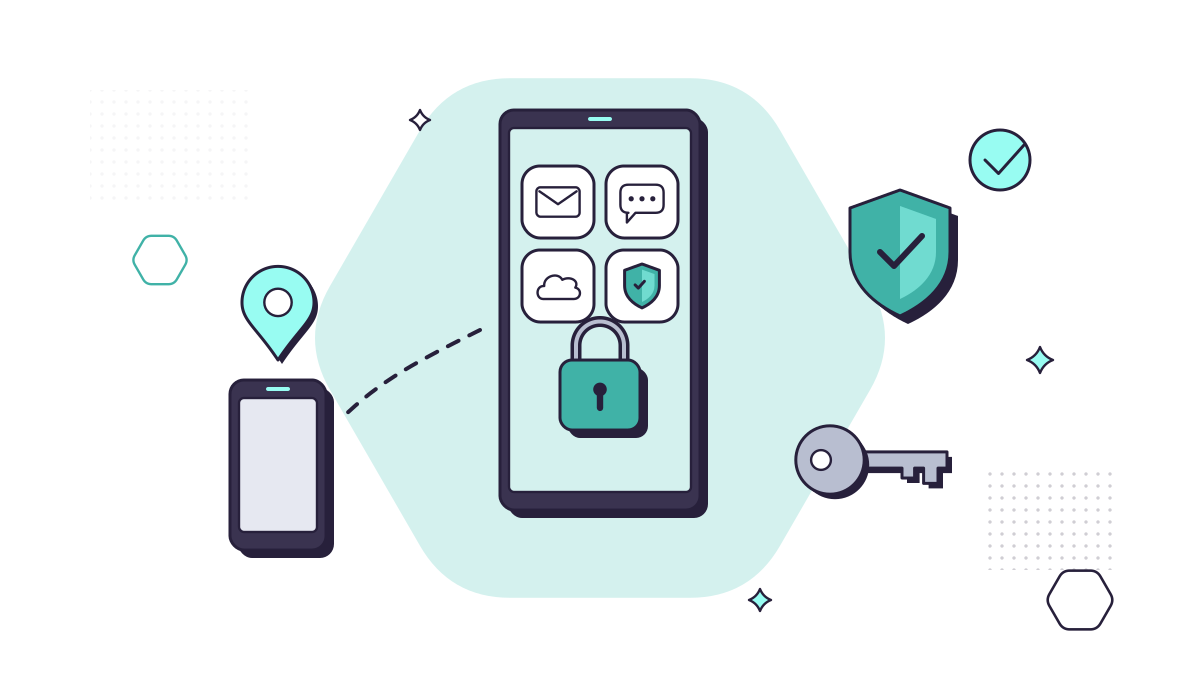
A work phone holds email, Teams chats, client files and, usually, the app that approves every sign-in. Our plans run on Microsoft 365 Business Premium, so this post covers what an Android phone needs to work with it, how to keep the company’s data on it protected, and what to do when one goes missing.
The apps people need
All four are free on Google Play. Staff sign in with their work account, not a personal Microsoft account.
- Outlook handles email, calendar and contacts. Use it rather than the phone’s own mail app, because the protections below only work in apps on Microsoft’s list of protected apps.
- Teams handles chat, calls and meetings.
- OneDrive holds each person’s work files and the ones colleagues share with them.
- Microsoft Authenticator approves sign-ins. It sends a notification to approve, gives a code when there’s no signal, and can hold a passkey, which Microsoft describes as phishing-resistant.
Word, Excel and PowerPoint are there too, for editing on the go. Each Business Premium licence lets a person install the apps on up to five phones, five tablets and five computers, according to Microsoft UK.
Company phone or personal phone?
Business Premium includes Microsoft Intune, which manages phones and the work data on them. How much it manages depends on who owns the phone.
Company phones can be enrolled and fully managed. You set the screen lock, install the apps, push updates and, if you need to, wipe the whole phone.
Personal phones need a lighter touch, and there are two ways to do it:
- With app protection, Intune manages only the work data inside the Microsoft apps. The phone isn’t enrolled, but on Android staff need the Intune Company Portal app installed, because that’s what receives the policies (Microsoft Learn).
- With a work profile, the phone gets a separate work area for work apps and data, which Intune manages. In Microsoft’s words, personal apps and data stay separate and “remain unaffected by Intune” (Microsoft Learn).
Keeping company data on the phone protected
For most small companies, app protection policies should do these things:
- Ask for a PIN or fingerprint before anyone opens work email or files.
- Stop work data being copied and pasted into personal apps.
- Save work files only to OneDrive, not to the phone or a personal cloud account.
- Encrypt work data inside the apps.
- Refuse to run on rooted or tampered-with phones.
- Block phones whose last security update is older than the date you set.
Microsoft recommends using these policies together with Conditional Access, so a phone without the protections can’t reach work data at all.
Updates matter as much as settings. The NCSC notes that most Android phones get software updates for up to three years after release, and many brands now give up to seven. Once a phone stops getting them, replace it. Check how long a model will be supported before you buy it.
If a phone is lost or stolen
- Report it straight away, out of hours included. Make sure staff know who to tell.
- Try to find it. Google’s Find Hub can ring the phone, lock it or erase it, as long as it’s switched on, connected and signed in to a Google account. Erasing is permanent, and after that the phone can’t be located.
- Remove the work data. A company phone can be wiped completely through Intune. On a personal phone, a selective wipe removes the work data from the Microsoft apps and leaves everything else alone. It takes effect the next time each app checks in.
- Sign the person out of Microsoft 365 on every device, and change their password if the phone wasn’t locked.
- Decide whether it’s a data breach. If someone could get at personal data on the phone, such as client emails, it may be a personal data breach. If it’s likely to put people at risk, you must report it to the ICO, within 72 hours where feasible. A locked phone with encrypted work data is far less likely to put anyone at risk.
The rest of phone security
Screen locks, app permissions, scam texts and public Wi-Fi are in our post on keeping business phones and tablets secure. Intune itself, including laptops and how to get started, is covered in Microsoft Intune for small businesses.
Business Premium already includes the tools in this post. They need setting up properly and keeping up to date. Our Mobile Device Management add-on controls and secures your company’s phones, tablets and remote devices, and it’s quoted to suit your company.
Questions people ask
Do staff have to let us manage their personal phone?
Not the whole phone. With app protection, Intune manages only the work data inside apps such as Outlook, Teams and OneDrive, and the phone isn’t enrolled. With a work profile, work apps sit in a separate area of the phone, and Intune leaves their personal apps and data alone.
Can staff use the phone’s built-in email app instead of Outlook?
They can, but Intune’s app protection only works in apps on Microsoft’s list of protected apps, such as Outlook, Teams, OneDrive, Word, Excel and PowerPoint. In Outlook you can require a PIN, stop work email being copied into personal apps and wipe it remotely.
What happens to work data when someone leaves?
On a personal phone, a selective wipe removes the work data from the Microsoft apps and leaves everything else. A company phone can be wiped completely and set up again for the next person.
How many phones does a Business Premium licence cover?
Each person can install the Microsoft 365 apps on up to five phones, five tablets and five computers.
Sources
- Microsoft UK: Microsoft 365 Business Premium
- Microsoft Learn: App protection policies overview (Intune)
- Microsoft Learn: Microsoft Intune protected apps
- Microsoft Learn: Android Enterprise personally owned work profile
- Microsoft Learn: Microsoft Authenticator authentication method
- NCSC: Device security guidance, Android
- Google: Find, secure or erase a lost Android device
- ICO: Personal data breaches, a guide