8 Ways to Organise Your Work Devices for Productivity
A cluttered laptop costs time in small amounts all day: hunting for the latest version of a file, wading through email, being pulled away by another notification. None of it is dramatic, but across a team of ten it adds up to hours a week.
The good news is that Windows 11 and Microsoft 365 already include most of what you need. Here are eight changes worth making, starting with the ones that save the most time.
1. Keep files in one agreed place
The biggest time-waster in most offices is not knowing where things are. Agree a simple rule and stick to it:
- Shared company files go in SharePoint (or the Files tab of the relevant Teams channel), in one agreed folder structure.
- Personal working files go in OneDrive, never only on the laptop’s own disk.
- Nothing important lives on the Desktop or in Downloads unless those folders are synced to OneDrive.
Use clear, consistent file names, with dates written year first (2026-10-09) so they sort properly.
2. Let Outlook sort your inbox
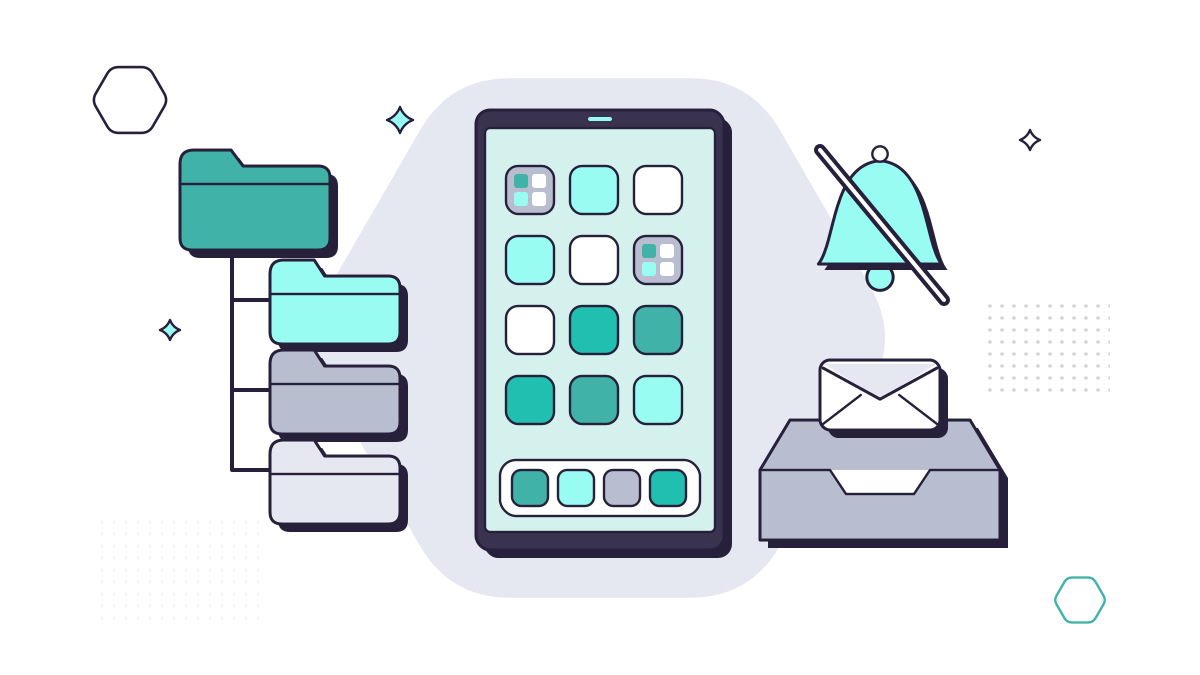
- Focused Inbox splits your inbox into Focused and Other, putting messages from people you deal with first and moving bulk and automated email out of the way.
- Rules can file newsletters, system alerts and copies of invoices into folders automatically.
- Unsubscribe from mailing lists you never read, rather than deleting them every week.
- Flag and act. If a reply takes less than two minutes, send it now; if not, flag it and come back to it.
3. Cut down on notifications
Every pop-up costs you a little concentration. In Windows 11, Settings > System > Focus starts a focus session that turns on Do Not Disturb, and you can choose which apps and calls are still allowed through. In Teams, set notifications for channels you only need to check occasionally to appear in your activity feed rather than as banners.
On phones, turn off notifications for anything that isn’t time-sensitive.
4. Tidy your screen and your start menu
- Unpin apps you don’t use from the taskbar and Start menu.
- Use Snap layouts (Windows key + Z) to put two or three windows side by side, such as a document and the email you’re replying to.
- Learn a handful of shortcuts. Our list of the most useful Windows 11 and Microsoft 365 keyboard shortcuts is a good place to start.
5. Use a password manager, and turn on multi-factor authentication
Forgotten passwords and locked accounts are a productivity problem as well as a security one. The NCSC recommends using a password manager to create and store a different strong password for every account. Protect the password manager itself with a strong master password (three random words works well) and multi-factor authentication.
Turn on multi-factor authentication for Microsoft 365 and every other business service that offers it. It’s also a requirement for Cyber Essentials.
6. Keep your browser under control
- Organise bookmarks into folders for the sites your team uses every day, or share them through a SharePoint page.
- Remove browser extensions you don’t use. Each one can see some of what you do online, so only keep ones from sources you trust.
- Close tabs you aren’t using. A browser with forty tabs open slows down the whole laptop.
7. Let updates and backups run themselves
Updates are easy to put off and easy to forget. Set Windows, Microsoft 365 apps and phones to update automatically, and restart when prompted. Cyber Essentials requires critical and high-risk security updates to be installed within 14 days of release.
Backups should be automatic too. Keeping files in OneDrive and SharePoint means they’re not lost with a laptop, but sync isn’t a backup: deletions and ransomware damage sync as well. A separate backup of your Microsoft 365 data covers that gap. Our backup and disaster recovery page explains how.
8. Look after the device itself
- Lock your screen whenever you step away (Windows key + L).
- Free up space with OneDrive Files On-Demand and Storage Sense; see how much device storage you need.
- Restart at least once a week. It clears out memory and lets updates finish installing.
- Keep it clean. Dust in the vents makes a laptop run hot and slow.
Make it the same on every device
Each of these tips helps one person. The real gain comes when every laptop in the business is set up the same way: the same folder structure, the same update and security settings, the same backup. That’s much easier to manage centrally than to ask each person to do it themselves.
That’s part of what our managed IT support covers: we set up and look after your devices and Microsoft 365, so your team can get on with their work.
Questions people ask
Should every member of staff organise their files their own way?
Personal working files can be organised however suits the person, but shared company files need one agreed structure in SharePoint. Otherwise nobody can find anything when someone is off, and leavers take the knowledge with them.
Are password managers safe?
The NCSC recommends them. They let you use a different strong password for every account. Protect the password manager itself with a strong master password and multi-factor authentication.
How often should work devices be updated?
Set updates to install automatically. Cyber Essentials requires critical and high-risk security updates to be installed within 14 days of release.
Sources
- Microsoft Support: Focus, stay on task without distractions in Windows
- Microsoft Support: Focused Inbox for Outlook
- Microsoft Support: Manage notifications in Microsoft Teams
- Microsoft Support: Keyboard shortcuts in Windows (Snap layouts)
- NCSC: What does the NCSC think of password managers?
- NCSC: Top tips for staying secure online, password managers
- NCSC: Cyber Essentials requirements for IT infrastructure v3.3 (April 2026)