Server Management for Small Businesses: 8 Practical Tips
Plenty of small businesses still have a server in a cupboard. It might run the accounts system, the case management software or the shared drive everyone has used for years. It usually works quietly, until it doesn’t.
Good server management is mostly routine: knowing what the server does, keeping it supported and patched, watching it, and being able to recover it. Here are eight tips, in roughly the order we’d tackle them.
1. Know what your server does, and whether it still needs to exist
Start with a simple list: what runs on the server, who relies on it, and what would stop if it went down for a day.
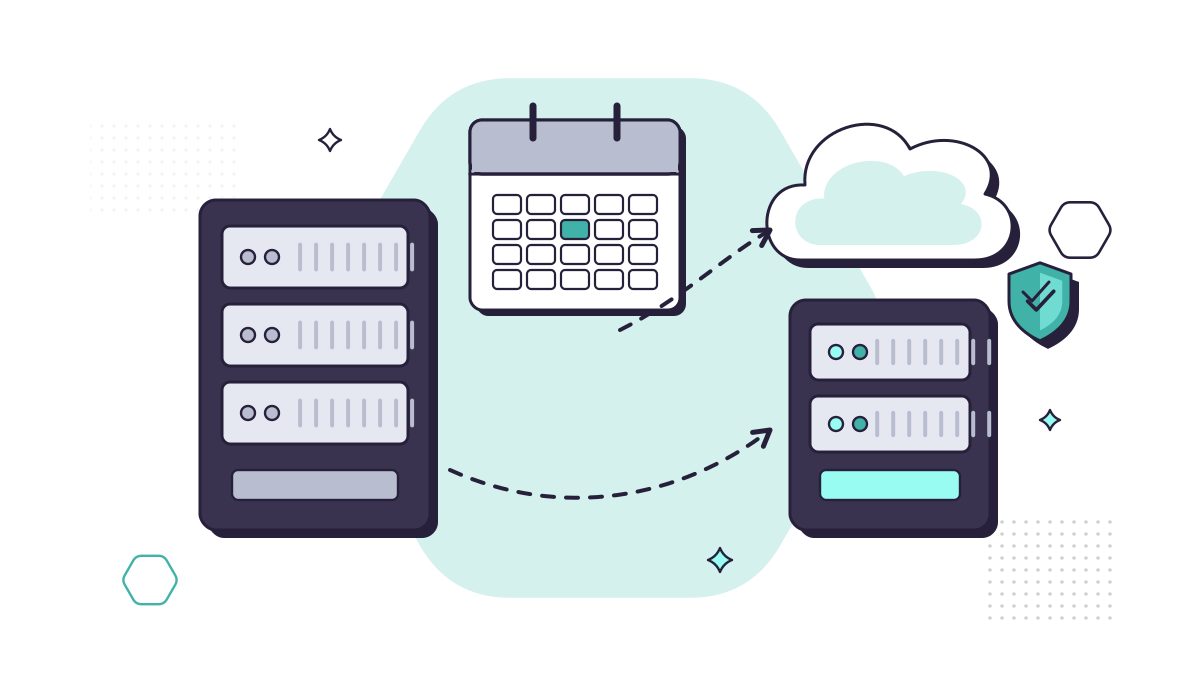
Then ask whether it still needs to be in your office. Files, email and many business applications now run well in Microsoft 365 or Azure, without hardware to buy, power and replace. Some businesses do still need an on-site server, usually for a particular application. But if yours is mainly a file store, moving to the cloud may be cheaper and safer than replacing it. Our cloud services page explains full cloud and hybrid options.
2. Keep it on a supported operating system
Once Microsoft stops releasing security updates for a server’s operating system, every new vulnerability stays open for good. Key dates:
- Windows Server 2012 and 2012 R2: support has already ended.
- Windows Server 2016: extended support ends on 12 January 2027.
- Windows Server 2019: extended support ends on 9 January 2029.
If you’re on 2016, now is the time to plan the replacement or the move to the cloud, not January. Running unsupported software also stops you getting Cyber Essentials, which now explicitly checks that systems are supported on the date the certificate is issued. The same goes for the server hardware: know when its warranty ends and how quickly you could get a replacement part.
3. Patch within 14 days
Cyber Essentials (version 3.3, from April 2026) requires high-risk and critical security updates for operating systems, firmware and applications to be installed within 14 days of release. That’s a sensible standard for any business.
Schedule updates for a regular out-of-hours window, check they’ve installed, and restart when needed. Don’t forget the things around the server: the firewall, network switches, the backup software and any management cards.
4. Monitor its health
Problems with servers usually give warning signs before they become outages. Set up monitoring and alerts for:
- disk space, and the health of the disks and any RAID array
- memory and processor use that stays high for long periods
- failed services and backups
- temperature and fan warnings
- security events, such as repeated failed logins
The important part is that someone actually reads the alerts and acts on them. A warning that a disk is failing is only useful if it gets replaced.
5. Give it a safe physical home
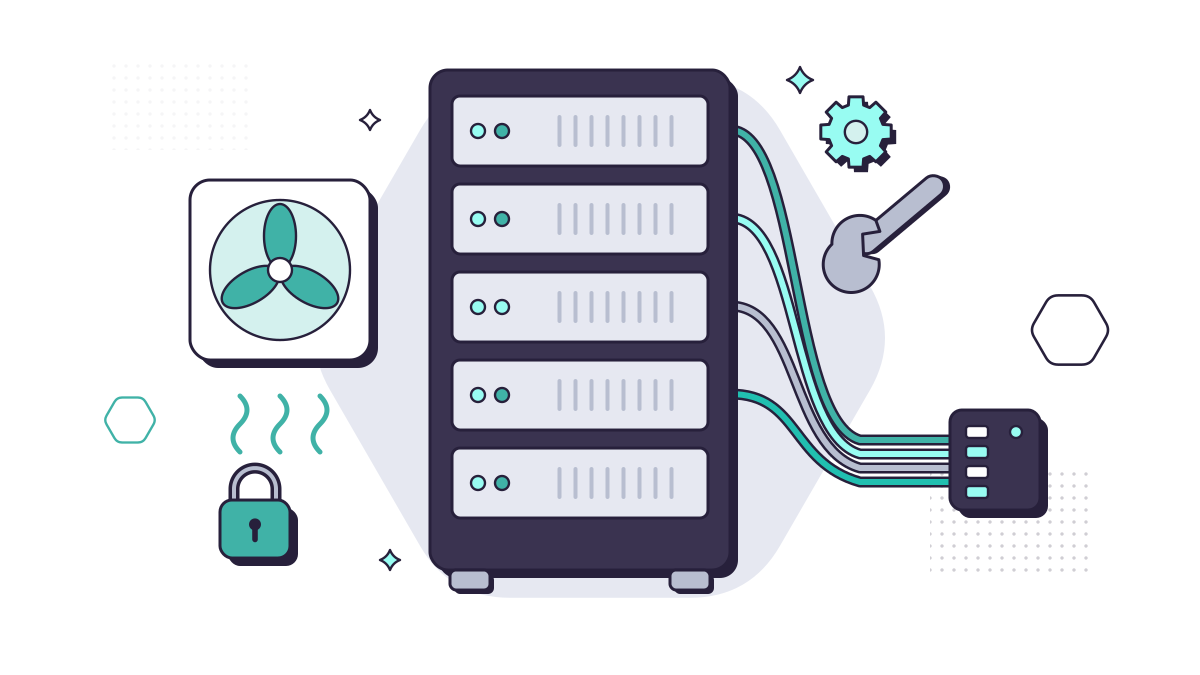
A server shouldn’t live under a desk where it can be kicked, unplugged or have coffee spilled on it. It needs:
- a locked room or cabinet, so only authorised people can touch it
- ventilation, kept within the manufacturer’s operating temperature range (cupboards get hot, especially in summer)
- tidy, labelled cabling, so nobody unplugs the wrong thing during an office move
- a rack if you have more than one or two devices, with room to expand
6. Protect its power
A sudden power cut can corrupt data and damage hardware. Put the server, and the network equipment it depends on, on an uninterruptible power supply (UPS). Set the UPS to shut the server down cleanly if the power stays off, and test that it does. UPS batteries wear out, so check them and replace them on schedule.
7. Lock down access, especially remote access
Servers hold the data attackers want. The NCSC notes that ransomware is “increasingly being deployed by attackers who have gained access remotely via exposed services such as Remote Desktop Protocol (RDP)”. Its advice includes:
- disable RDP if it isn’t needed, and never leave it open to the internet
- use multi-factor authentication at every remote access point
- use a VPN for remote access, and patch remote access devices promptly
- give people the least privilege they need
On the server itself, use separate administrator accounts that aren’t used for email or browsing, keep anti-malware up to date, and remove software and accounts you don’t need.
8. Back it up, and test the restore
Everything above reduces the chance of a bad day. Backups decide how bad it gets. Back up the server automatically, keep at least one copy offsite and one that an attacker can’t delete, and test that you can restore it, including how long a full restore takes.
Our guide to building a backup strategy walks through it step by step, and our backup and disaster recovery service puts it in place for you.
Getting help with your server
Server management is steady, unglamorous work, and it’s easy for it to slip when nobody’s job is to do it. Our managed IT support includes monitoring and maintenance, so your systems are kept updated and watched and issues are caught early. If you’re wondering whether your server is due for replacement, or whether you need one at all, the free IT Assessment is a good place to start.
Questions people ask
When does Windows Server 2016 support end?
Microsoft’s extended support for Windows Server 2016 ends on 12 January 2027. After that it gets no more security updates. Windows Server 2019 is supported until 9 January 2029.
Does a small business still need a server?
Often not. Files, email and many business applications now run well in Microsoft 365 or Azure. Some businesses still need one for a specific application. It’s worth asking the question whenever a server is due for replacement. See cloud services.
How quickly should we install server updates?
Cyber Essentials requires high-risk and critical security updates for operating systems, firmware and applications to be installed within 14 days of release. That’s a good standard to work to whether or not you’re certified.