How to Build a Backup Strategy for a UK Small Business: 7 Steps
Most UK businesses have a backup of some kind. The UK government’s Cyber Security Breaches Survey 2025/2026 puts it at 88%. What’s often missing is a backup plan: knowing what’s backed up, where the copies are, whether an attacker could delete them, and how long it would take to get working again.
Here’s how to create a backup plan in seven steps. None of it needs a big budget.
Why you need a backup plan
Most restores aren’t dramatic. Someone deletes the wrong folder, saves over a spreadsheet, or a laptop dies the week before a deadline. Ransomware is the rarer case, but it’s the one that tests a backup hardest, because attackers go after the backups first. The NCSC warns that ransomware attacks “may seek to frustrate or prevent effective recovery by destroying backups”.
There’s a legal angle too. If you hold personal data, the UK GDPR (Article 32) expects you to be able to “restore the availability and access to personal data in a timely manner” after an incident, and to regularly test that your security measures work. The ICO’s own guidance gives the 3-2-1 rule as an example of how to meet that.
Step 1: Decide what you’re protecting, and how much you could lose
Start with a list, not a product. Write down:
- Where your data lives. Microsoft 365 (email, OneDrive, SharePoint, Teams files), any server in the office, your accounts or case management system, other business databases, and anything still saved on laptops.
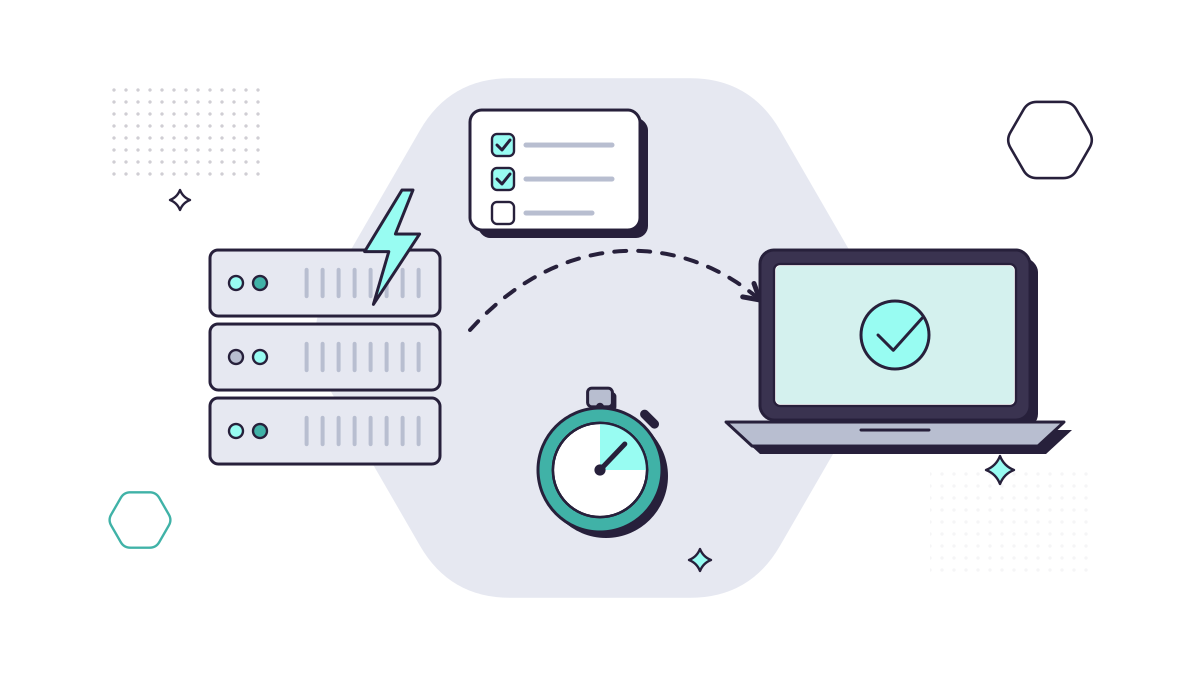
- How much work you could afford to redo. If the answer is “half a day at most”, your backups need to run at least that often. IT people call this the recovery point objective.
- How long you could cope without each system. Email for an hour? The accounts system for a day? This is the recovery time objective, and it decides how fast your restore has to be.
Be honest about the answers. They drive every decision that follows.
Step 2: Follow the 3-2-1 rule
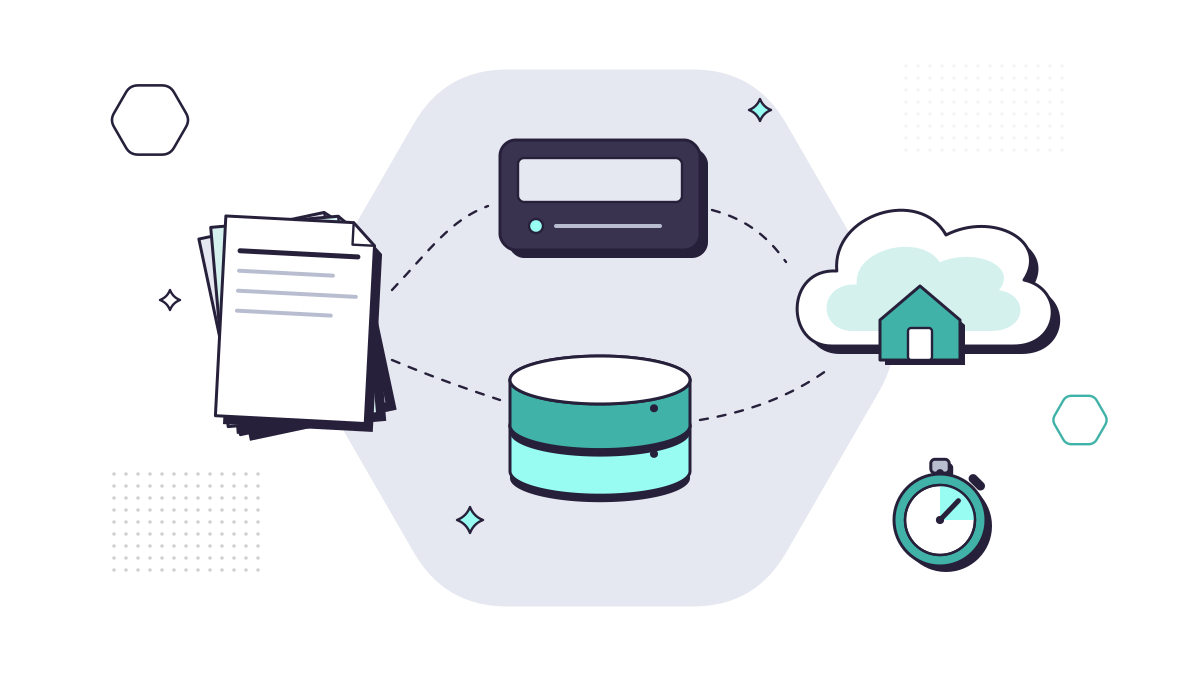
Keep three copies of your data (the live copy and two backups), on two different types of storage, with one copy away from the office.
Two types of storage means one problem can’t take out everything: a backup on the same server as the live data dies with that server. The offsite copy protects you from fire, flood, theft and anything else that affects the building. For most small businesses today, the offsite copy is a cloud backup service.
The NCSC’s advice for small organisations makes the same point in plainer terms: use online backup and a storage device, “in case one of them is lost or stolen, or if the storage device fails”.
Step 3: Make one copy immutable or offline
This is the step most often missed, and the one that matters most against ransomware. If your backup is permanently connected and your administrator account can delete it, an attacker with that account can delete it too.
Make sure at least one copy is either:
- Immutable: stored so it can’t be changed or deleted for a set period, even by an administrator. Many cloud backup services offer this.
- Offline: physically disconnected when not in use, like a drive that’s rotated and locked away. The NCSC notes a backup device “should not stay connected to your device when not in use”.
The NCSC’s principles for ransomware-resistant backups also recommend alerts when someone makes significant changes or tries privileged actions, and the ability to restore an older version even if later versions are corrupted. Protect the backup system’s own login with multi-factor authentication and an account that isn’t used for anything else.
Step 4: Back up Microsoft 365 separately
Microsoft keeps Microsoft 365 running and resilient, but that isn’t the same as backing up your data against your own mistakes or an attacker. By default you get:
- deleted files kept in the OneDrive and SharePoint recycle bins for 93 days
- permanently deleted email kept for 14 days (an administrator can raise it to 30)
- the option to roll a whole OneDrive back to any point in the last 30 days
Those are good safety nets. But if an account is deleted, a recycle bin is emptied, or a problem goes unnoticed for longer than the window, they don’t help.
There are two ways to fill the gap:
- Microsoft 365 Backup, Microsoft’s own add-on, backs up OneDrive, SharePoint and Exchange with restore points up to a year back by default. It’s billed per gigabyte and stays inside Microsoft’s own boundary, which makes restores fast but means it isn’t a copy held outside Microsoft.
- A third-party backup service keeps a copy outside Microsoft’s environment, which counts towards your offsite and second-type copies in the 3-2-1 rule. The NCSC’s ransomware guidance is clear that you shouldn’t “rely on multiple copies in a single cloud service”.
Teams files live in SharePoint and OneDrive, so they’re covered with those. Check whether any backup you choose covers Teams chat messages too, if those matter to you.
And make sure files are in Microsoft 365 in the first place. Documents saved to a laptop’s desktop aren’t backed up by any of this. OneDrive Known Folder Move fixes that.
Step 5: Automate and monitor
Manual backups depend on someone remembering, being in the office and choosing the right folders. They’re the first thing to slip in a busy week. Automate every backup on a schedule that matches your answers in step 1.
Then watch it. Someone should read the backup reports or alerts every working day or week, and failures should be chased, not dismissed. A backup that silently stopped three months ago is the most common nasty surprise.
Step 6: Test your restores
A backup is only proven when you’ve restored from it. A sensible rhythm:
- Weekly: check the backup reports for failures and warnings.
- Monthly: restore a handful of files or emails to a different location and open them.
- At least yearly, and after any big change: restore a whole server, mailbox or SharePoint site, and time it against the recovery time you set in step 1.
Write down each test, what you restored and how long it took. It’s useful evidence for the ICO’s “regularly testing” expectation, for cyber insurers and for clients’ due diligence questionnaires.
From our work
We once looked at the backups of a large company. They ran regularly and, on the surface, looked robust. But two small things meant they would have failed when it mattered: the backup was copying the wrong drive, and staff were unplugging the offsite copy while the main backup was still running, so that copy was incomplete and corrupt. They now have hourly local and offsite copies, and every six months we run a real restore test, with their machines booting from the backup within an hour.
David Gilbey, Just Gilbey IT Solutions
Step 7: Write the recovery plan
When something goes wrong, nobody should be working out the plan on the day. A short written recovery plan should cover:
- who decides to invoke it, and who does what
- which systems come back first, in what order
- where the backups are and how to reach them (including logins kept somewhere other than the systems that might be down)
- who you call: your IT provider, your insurer, and for a personal data breach, whether you need to report it to the ICO within 72 hours
- how you’ll keep clients and staff informed
Keep a printed copy, and review it once a year when you do your full restore test. For the business side of planning (insurance, suppliers, keeping the doors open), see our tips for getting ready for the unexpected.
A quick checklist
- We know where all our data lives and how much we could afford to lose.
- We have three copies, on two types of storage, one offsite.
- At least one copy is immutable or offline.
- Microsoft 365 is backed up outside its own recycle bins.
- Backups run automatically and someone checks the reports.
- We’ve restored from backup in the last month, and done a full test this year.
- We have a written recovery plan, and people know where it is.
If you can’t tick every line, that’s normal, and fixable. Our backup and disaster recovery service puts each step in place and tests it for you, and Microsoft 365 backup is included in every MYLE plan (see what each plan includes). For the figures behind all this, see our UK backup statistics.
Questions people ask
What is the 3-2-1 backup rule?
Three copies of your data (the live copy and two backups), on two different types of storage, with one copy kept off site. The ICO uses it as an example of how to meet the UK GDPR’s requirement to restore personal data in a timely manner.
Does Microsoft back up Microsoft 365?
Microsoft keeps your data resilient and gives you recycle bins (93 days for OneDrive and SharePoint) and 14 days of recoverable email by default. Point-in-time backup is a separate product, Microsoft 365 Backup, or a third-party backup service. Neither is switched on by default.
How often should we test our backups?
Check the backup reports every week, restore a few files every month, and do a full test of a server, mailbox or SharePoint site at least once a year, or after any big change. Keep a note of each test.
Is OneDrive a backup?
No. OneDrive syncs files, so a deletion or a ransomware-encrypted file syncs too. It’s a good place to keep files and it has a recycle bin, but you still need a separate backup. See OneDrive Known Folder Move.
Sources
- ICO: A guide to data security (UK GDPR)
- legislation.gov.uk: UK GDPR Article 32, Security of processing
- NCSC: Principles for ransomware-resistant cloud backups
- NCSC: Mitigating malware and ransomware attacks
- NCSC: Small organisations guide to cyber security, Backing up your data
- Microsoft Learn: Overview of Microsoft 365 Backup
- Microsoft Support: Restore deleted files or folders in OneDrive
- Microsoft Learn: Change deleted item retention in Exchange Online
- ICO: 72 hours, how to respond to a personal data breach
- DSIT: Cyber Security Breaches Survey 2025/2026