5 Things You Should Never Do on a Work Computer
When you spend all day on a laptop, it starts to feel like yours. A quick look at your bank on your lunch break becomes saved passwords, holiday photos and a family member borrowing it at the weekend.
But a work computer belongs to your company, holds its data and is set up to protect it. Some habits put that data at risk, and some put yours at risk too. Here are five to avoid.
A word on privacy first. Your employer may monitor work devices for legitimate reasons, such as security. Under UK GDPR, the ICO says employers “must inform workers about any monitoring”, apart from in very exceptional circumstances, so check your company’s IT or acceptable use policy. Either way, it’s sensible to treat a work device as a work device.
1. Save your personal passwords in the work browser
Letting the browser remember passwords is convenient, and the NCSC says it’s safe to do “on your own devices”. A work computer isn’t your own device. It can be taken back for repair, replaced, or reassigned when you leave, and if you’re still signed in to the browser, whoever uses it next may be able to get into your accounts.
The reverse matters too: never reuse your work password for a personal account. If a shopping site you use is breached, attackers will try the same password on your work email.
Instead: use a personal password manager on your own phone or computer, and keep personal accounts there.
2. Mix personal and work files
Personal files on a work laptop have a habit of turning up where you don’t expect. Many companies back up work devices, so your photos may sit in the company’s backups for years. And when you leave, or the laptop is replaced, you may not get them back.
The other direction is the bigger risk. Copying work files to a personal Dropbox, Google Drive or email account so you can work from home puts company and client data somewhere the company can’t protect or control. The NCSC calls this “shadow IT” and gives exactly that example: staff storing “sensitive organisational data in personal cloud accounts”. If that data includes personal information about clients or staff, losing it could be a reportable data breach.
Instead: keep personal files on personal devices, and use your company’s approved tools, such as OneDrive or SharePoint, to work from anywhere.
3. Install unapproved software, or paste company data into AI tools
Free tools, browser extensions and “helpful” downloads are a common way for malware to get onto a computer, and some extensions can read everything you type in the browser. If your company restricts what you can install, that’s why.
AI tools are the new version of this. Pasting a client’s letter, a spreadsheet of staff details or a confidential contract into a free or personal AI account sends that data to a service your company hasn’t checked. The government’s Cyber Security Breaches Survey 2025/2026 found that, among businesses using or considering AI, only 24% had security practices in place to manage the risks.
Instead: ask IT before installing anything, and use only the AI tools your company has approved, such as Microsoft 365 Copilot set up for your organisation. If your company doesn’t have an AI policy yet, our AI & Copilot page explains how we help businesses write one.
4. Let friends or family use it
If you work from home, it’s tempting to let someone borrow the work laptop for homework or a quick search. But they’ll be using a device that has access to your company’s email, files and systems, and possibly to client data your company has a legal duty to protect. For solicitors and accountants, client confidentiality is part of the job.
There’s a security risk too. Someone who isn’t used to spotting phishing emails or dodgy websites could pick up malware that then spreads to company systems through your account.
Instead: keep the work laptop for you, and lock it (Windows key + L) whenever you step away.
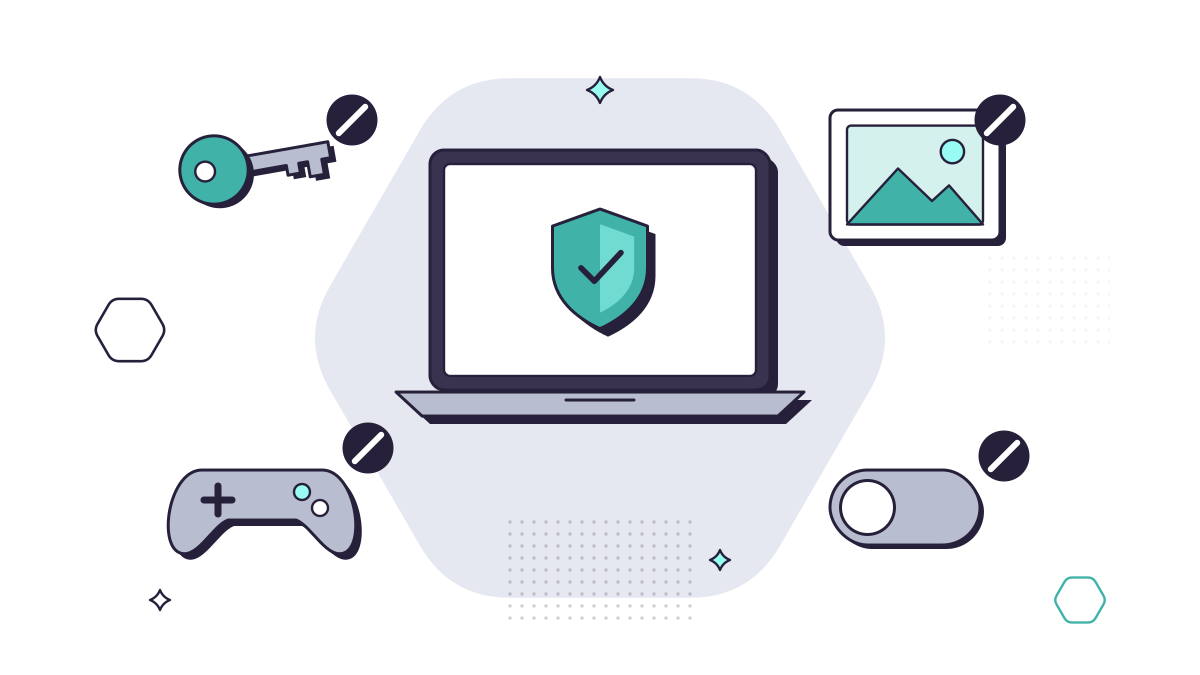
5. Turn off security tools, updates or backups
When a laptop is slow, it’s tempting to pause the backup, close the antivirus or click “remind me tomorrow” on updates for the fifth time. Those tools are what stand between a bad day and a serious incident. Updates fix security holes attackers are actively using. Backups are what gets your work back if the laptop dies or ransomware strikes.
Instead: restart when updates ask you to, leave security tools alone, and if something really is slowing you down, tell IT so they can fix the cause.
If you manage the computers
If you’re the owner or office manager, most of these risks can be reduced with the right set-up rather than relying on everyone remembering. That means managed devices, restricted installs, encrypted drives, multi-factor authentication, filtered web access and a clear, short IT policy that staff have actually read.
Our cyber security service puts that layered protection in place.
Questions people ask
Can my employer see what I do on my work computer?
They may be able to. UK employers can monitor work devices for legitimate reasons such as security, but under UK GDPR the ICO says they must tell workers about any monitoring, apart from in very exceptional circumstances. Check your company’s IT or acceptable use policy.
Is it OK to check personal email on a work computer?
It depends on your company’s policy. Even where it’s allowed, use the webmail in a browser rather than adding the account to Outlook, don’t save the password, and sign out when you’re done. Be extra careful with links, because personal email is outside your company’s email filtering.
Can I use ChatGPT or other AI tools at work?
Only the ones your company has approved, and only in the way its AI policy allows. Never paste client details, personal data or confidential documents into a free or personal AI account. See our AI & Copilot page.